Local AI for developers


Introduction
Using the big LLMs is not possible for many developers in their daily work for various reasons:
- companies need ages to decide if and which of the big LLMs may be compliant
- companies do not want to pay for tokens
- companies do not want to sent their code into the web not knowing exactly for what the code is used for
- companies do not want to be dependent on US companies
- often it is simply not allowed by law to send private data into foreign countries
A solution for this situation may be using a locally running AI.
Local AI Limitations
At the time of writing AI specific hardware and memory are expensive. Therefore it is currently not possible to run LLMs with hundrets of billions parameters locally on consumer hardware and we are forced to use smaller LLMs matching our hardware.
As a result the answers (i.e. coding examples, code repairs and so on) have a lower quality than the answers given by the big commercial LLMs.
But for first experiments and to get a first impression how LLMs may help in the daily work the smaller locally running LLMs should be good enough.
My setup
In my setup I use a dedicated graphics card with Nvidia RTX 5060 ti chip and 16 GB RAM for inferencing.
LM Studio manages the LLMs. As IDE I use Jetbrains IntelliJ with activated AI Assistant plugin to access LM Studio, my OS is Windows 11.
LM Studio + IntelliJ setup
step by step
LM Studio
Download and install LM Studio from the official site.
To have full flexibility, configure LM Studio to accept requests from other sources than localhost.
Developer (CTRL+2) -> Server Settings -> provide in local network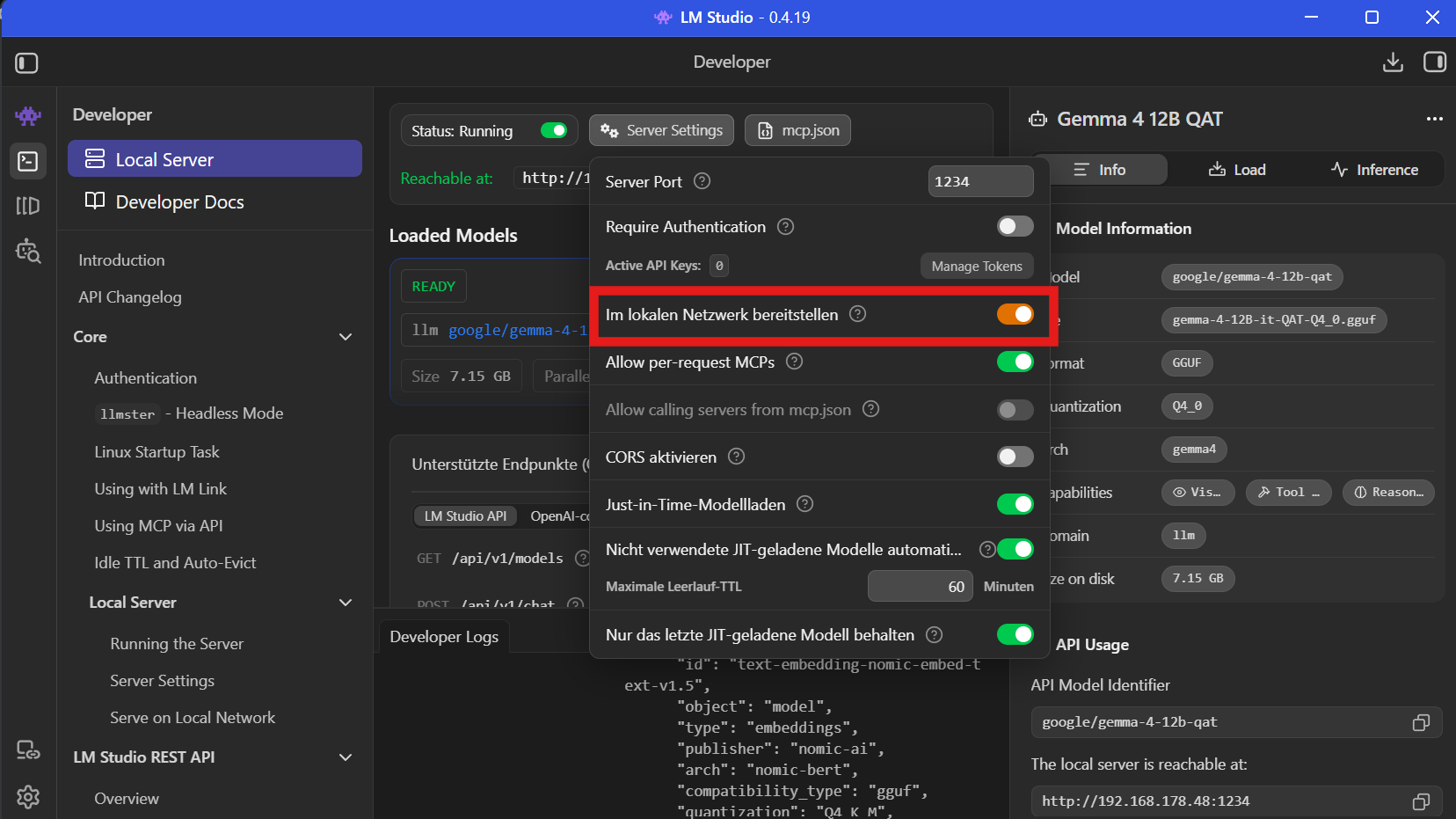
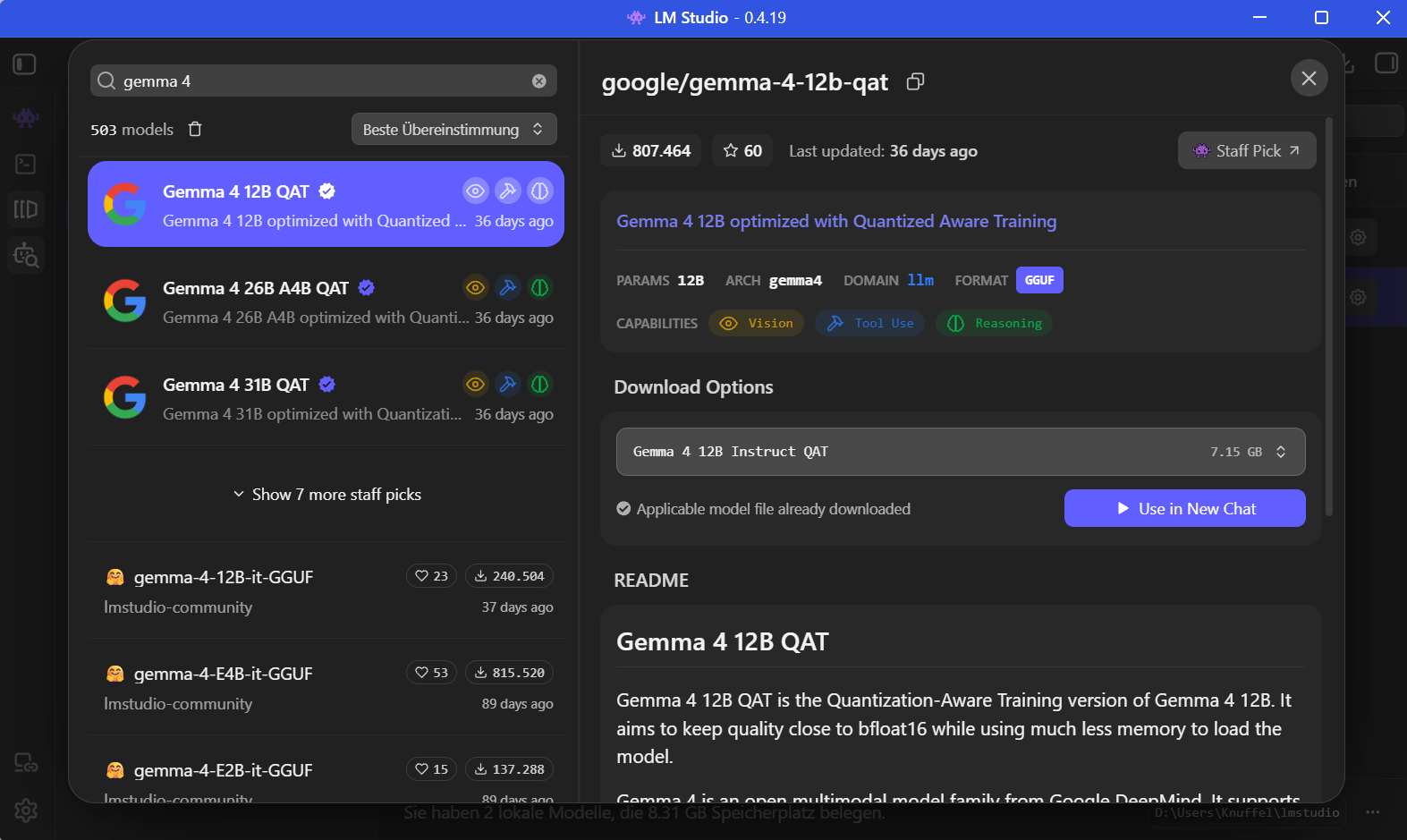
For my corrent experiments I use the LLM
google/gemma-4-12b-qatwith 12 billion parameters which fits completely into the 16GB RAM of my graphics card and you do not have to wait too long for answers.
Open
Model Searchsearch for
gemma 4and download the model.
JetBrains AI Assistant
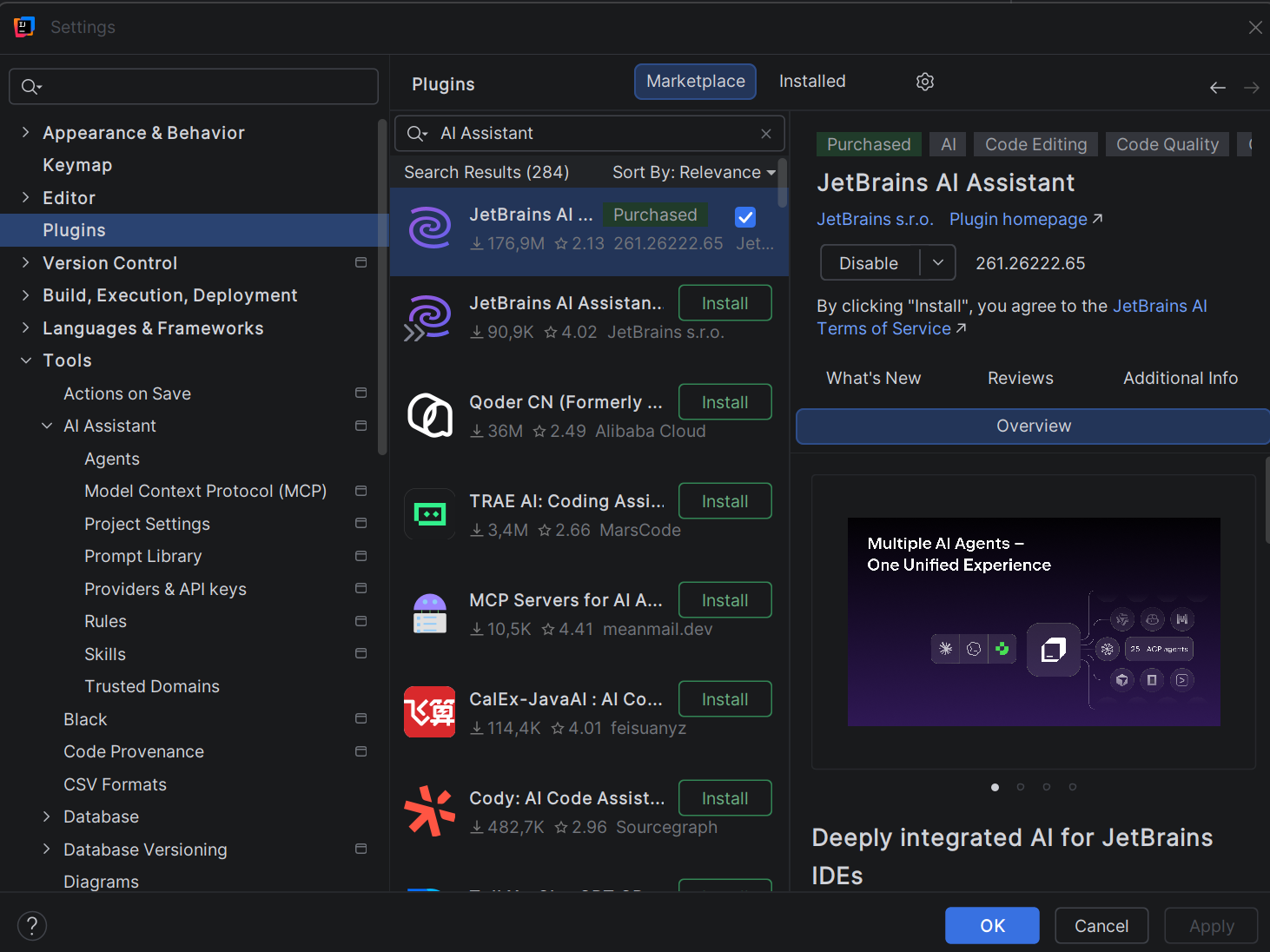
In IntelliJ Ultimate there the AI Assistant already is included in your subscription.
Ensure the JetBrains AI Assistant plugin is installed and activated.
Then the AI Assistant needs to be configured to connect to the locally running LM Studio.
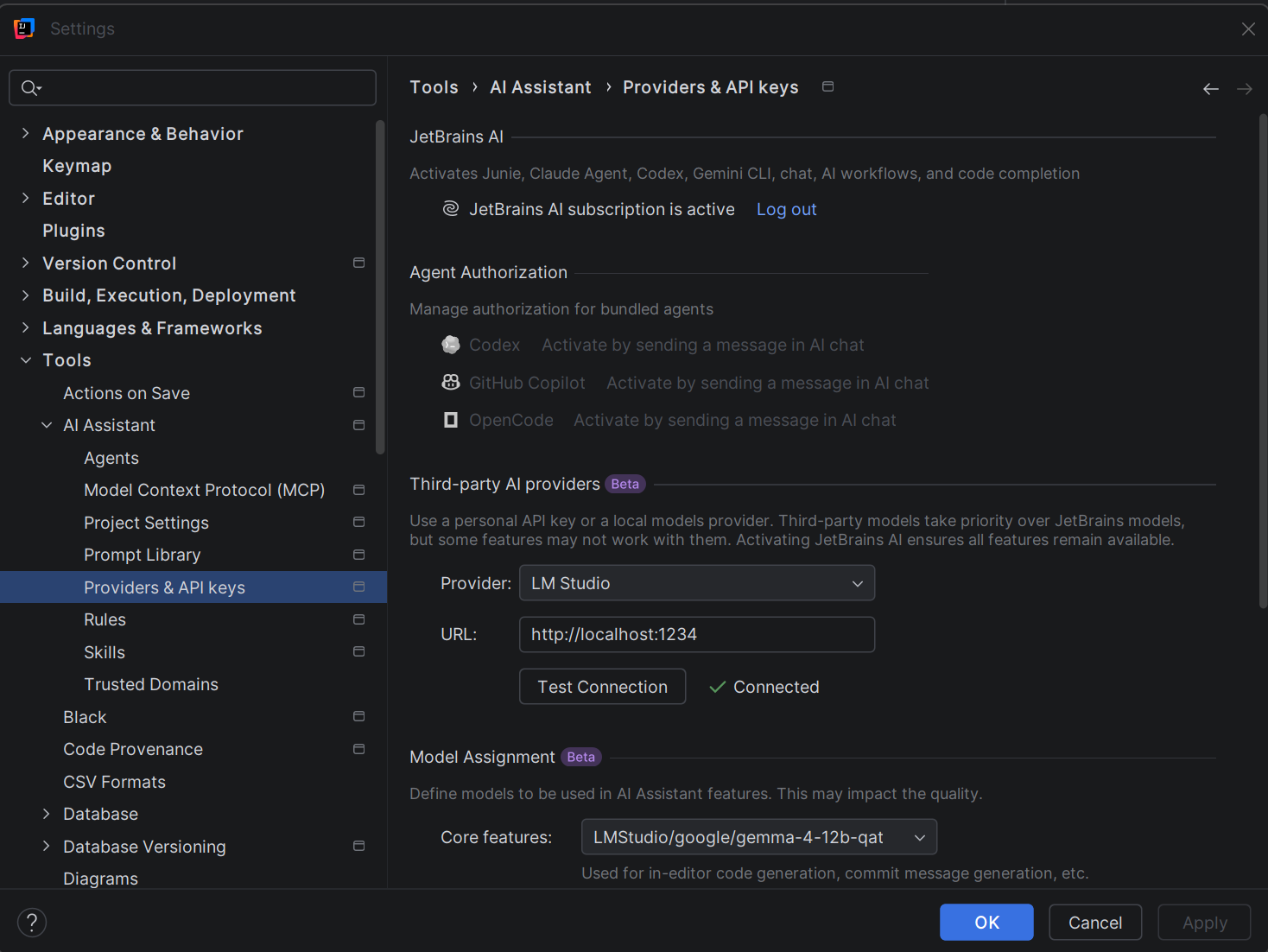
Choose "LM Studio" as provider and give
http://localhost:1234as provider URL. After clicking the button "Test Connection" the established connection is confirmed.
After the AI Assistant is connected all downloaded LLMs provided by LM Studio are available in IntelliJ.
Use AI Assistant chat
The AI Assistant in IntelliJ has an own view. You need to open it, then the chatwindow is shown.
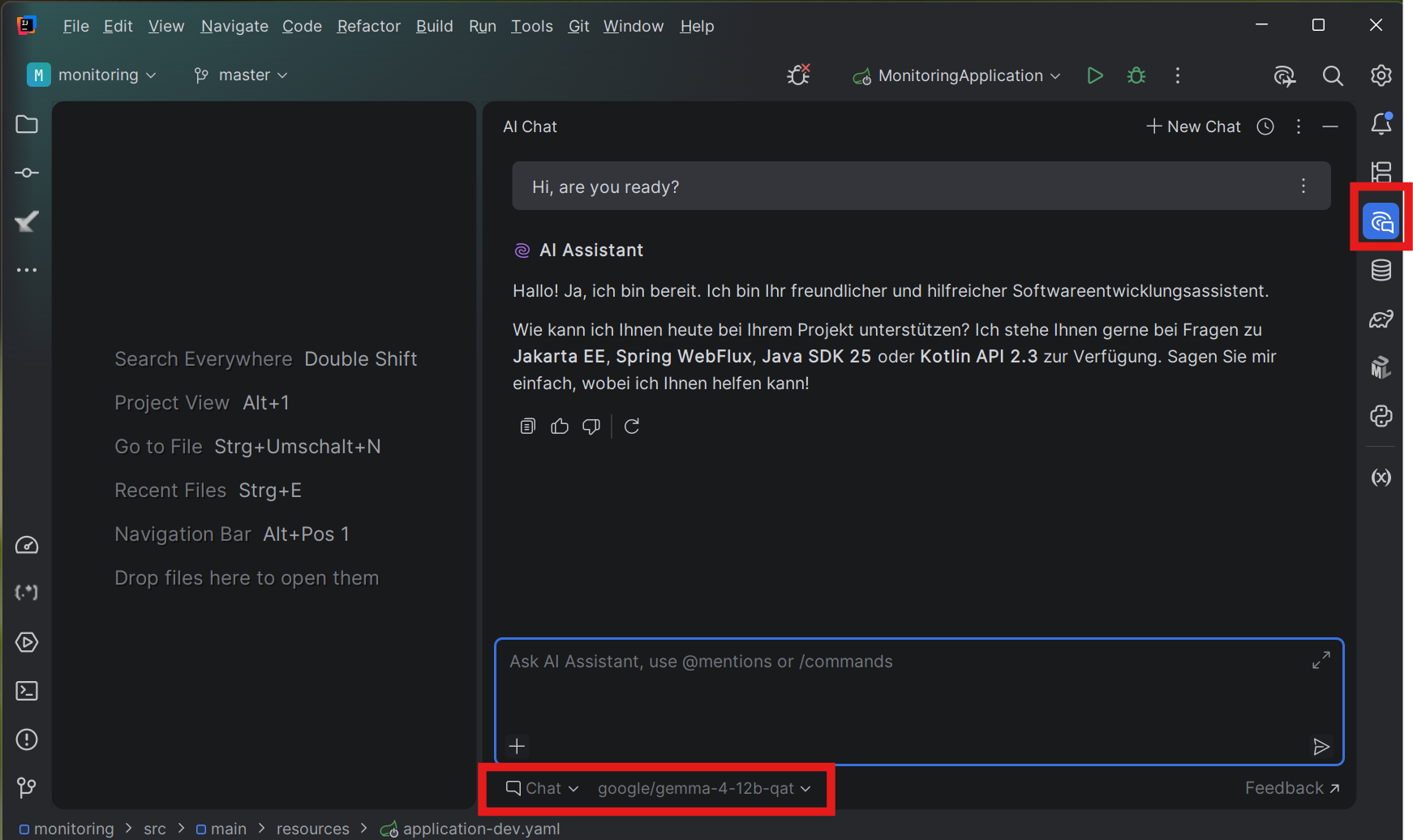
It is important that you choose
Chatas operation mode below the chat input field. This ensures the locally running LM Studio is used.
Next to the operation mode you can choose the models provided by LM Studio.
Summary
It is not very complicated to connect IntelliJ with a locally running LLM. With this setup you can do your first local AI aided coding experiments with no extra costs, highes privacy and lowest risk.